Appearance
What is Fablnx?
Fablnx is an AI copilot for structural steel design and detailing. You bring the contract drawing set — the PDF the structural engineer issued — and Fablnx helps you turn it into a coordinated 3D model and a material takeoff, without retyping the drawing by hand.
Three things happen in every project:
- The set gets read. Every sheet is classified, and the general notes are read into a design spec you can trace back to the exact words on the page.
- You trace the structure. Over each drawing you place grids, columns, beams and braces in a 2D editor, with AI detection doing most of the drawing so you review rather than draw.
- Verified work is committed. A scene is one drawing you have traced — one plan, one elevation. Each scene you validate and commit becomes part of one coordinated 3D model, which you can orbit and take off.
Conflicts and missing information surface as questions instead of quietly slipping through. The copilot asks you about them, and sends an RFI to the engineer only when you agree.
Who it's for
Structural detailers, checkers and engineers who work from contract drawings and need a coordinated model and a takeoff — with a trail back to the sheet every fact came from.
The shape of a session
| Step | Where | Guide page |
|---|---|---|
| 1. Upload a contract PDF | Projects screen | Projects & uploads |
| 2. Watch the set get sorted | Files panel | Files & pages |
| 3. Check what the copilot read | Copilot panel | The AI copilot |
| 4. Confirm the spec values | Design spec panel | The design spec |
| 5. Trace a plan or an elevation | Scene editor | Scenes, Plans, Elevations |
| 6. Let detection prefill members | Scene editor | Detection |
| 7. Validate, then commit | Scene editor | Validation & commit |
| 8. Answer the questions it raises | Questions and RFIs panel | Questions and RFIs |
| 9. Set up levels and grids | Structure panel | Levels, grids & the building |
| 10. Orbit the assembled model | Model tab | The 3D model |
| 11. Run the takeoff | World panel | Material takeoff |
The shell that holds all of this — top bar, sidebar, tabs, splits — is covered in The workspace.
Sign in
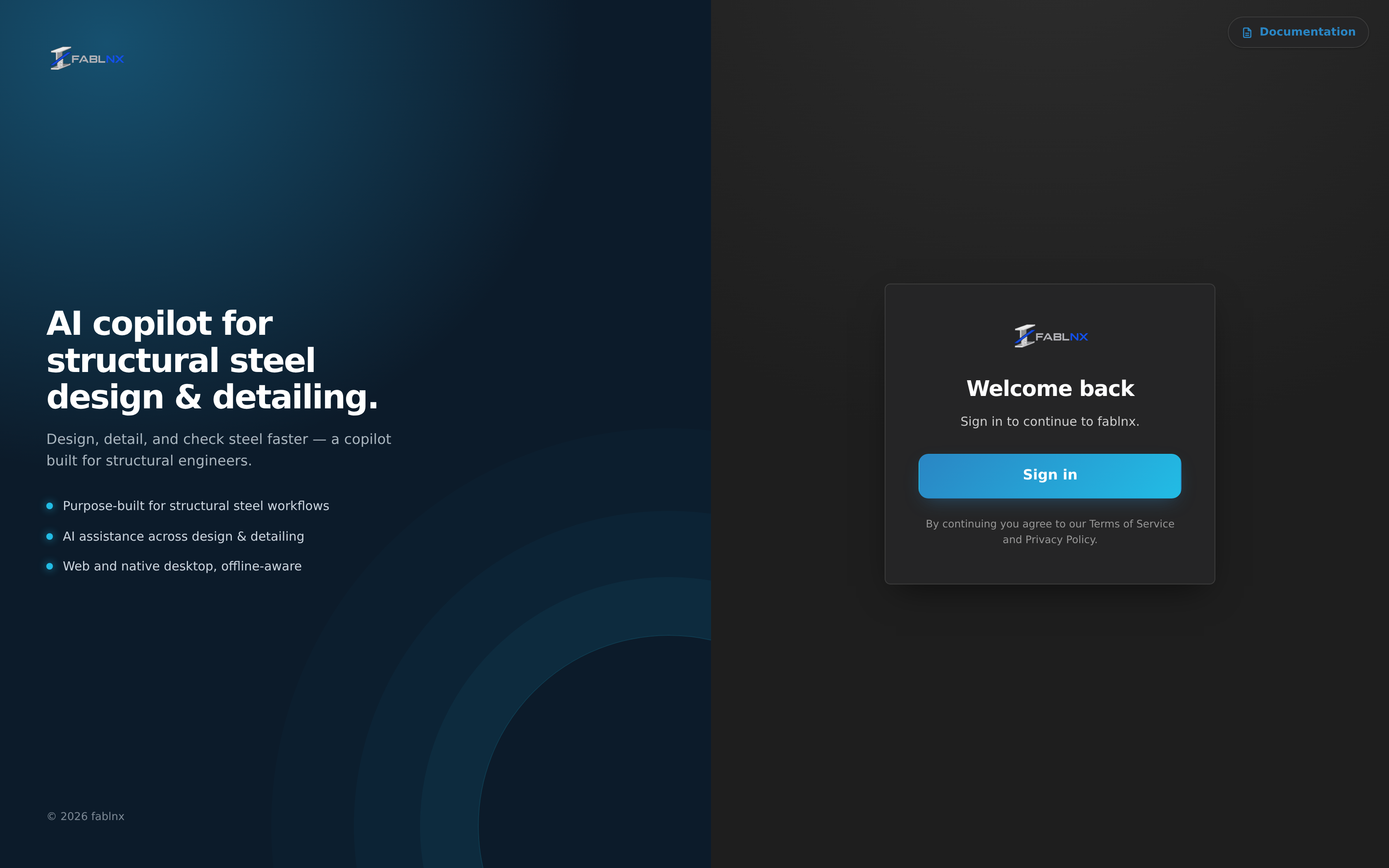
- Open your team's Fablnx address in your browser (
at.<team>.fablnx.com), or open the Fablnx app beside Tekla Structures or SDS2. - Click Sign in.
- Complete sign-in on the page that opens, and you land on the projects screen.
There is no email and password box, no sign-up link and no "forgot password" in Fablnx itself — Sign in hands you to the identity provider, which owns your credentials, passkeys and MFA. While the app is still working out whether you are already signed in, the card shows a spinner and Getting things ready….
New here? Confirm your email. When you sign up with an email and password, Fablnx sends you a link. Until you click it, the app shows Check your inbox with the address it wrote to. Click the link in the email, then come back: the app opens by itself, with no need to reload. Nothing arrived? Check your spam folder, or choose Resend email (once a minute). Use a different account signs you out. Signing in with Google needs no confirmation.
Deep links survive sign-in
If you open a link straight to a project while signed out, you are returned to that same project after signing in — not to the projects list.
Staying signed in, and being thrown back to sign-in
In the browser, your session is kept in local storage with a refresh token, so it survives a page reload and a browser restart.
If that session can no longer be renewed, the app signs you out and returns you to the sign-in screen with no error message. Nothing is lost; sign in again and carry on. Signing out always returns you to the home route, not to the page you were on.
Inside Tekla Structures
Fablnx for Tekla is a Windows app that opens beside Tekla Structures. It is the same product in its own window, next to your model: the same screens, the same sign-in, the same session. What it adds is the model — questions about what is open, and pushing a sheet into it — and nothing is taken away.
Install it once. Open your team's download page (download.<team>.fablnx.com), choose Download and run the file. It shows the Fablnx logo while it installs, for you alone (no administrator rights), and adds Fablnx to the Start menu and the desktop. Start it with or without Tekla Structures: the chip at the top of a project says Tekla not connected until Tekla has a model open, then shows the model's name. Pushing and the other model actions wait for that; the drawings, scenes and the copilot work either way.
During the beta
The installer is not signed yet, so Windows may say it protected your PC. Choose More info, then Run anyway.
It updates itself. Fablnx checks for a new version when it starts and every few hours. It downloads it quietly, says so beside the clock, and installs it the next time you start Fablnx.
To remove it, open Windows Settings → Apps → Installed apps, find Fablnx and choose Uninstall. It removes the app, its shortcuts, your sign-in on this computer and the Fablnx plugin in SDS2.
If you installed the earlier Tekla extension (a .tsep), remove it in Tekla's Extension Manager; the app replaces it.
It works with SDS2 too. The same app connects to the job you have open in SDS2 Modeling — see Working in SDS2.
Working offline
When your machine drops off the network, a banner appears above everything, on every screen:
You’re offline — we’ll reconnect automatically when the network returns.
You do not have to reload, and there is no reconnect button.
Your edits are kept, not lost
Edits you make while offline — a level's elevation, a schedule mark, a page's classification — stay on screen and are written to this machine straight away. The banner counts them:
You’re offline — 3 changes saved here and waiting. They’ll sync when the network returns.
They survive closing the tab and reopening it. When the network comes back they are sent in the order you made them and the banner goes. Nothing is said while you are online — a bar reporting that the software is working is one nobody reads.
What the server has not seen, it has not checked
A queued change has not been validated yet. If the server refuses one when it finally arrives — say a level you deleted turns out to still be in use — that change is undone and the reason is shown then, not when you made it. Everything else in the queue still goes through.
Right after reopening the app there is also a moment before the queue is sent where a list may briefly show the server's older values. It corrects itself as the queue drains.
Inside Tekla, only half of it goes
Running inside Tekla Structures, Fablnx straddles two machines. The model is local — it is open on your desk and Fablnx reads it directly — and the drawings are not: your sheets, their geometry, detection, validation, a push and every report that lays one against the other are on the server.
So the banner says which half went, rather than that Fablnx is offline:
You’re offline — Tower-A is still here, and everything that only reads it works. The drawings are not: sheets you have not saved offline, detection, validation, a push, and every report that compares the two.
And a screen that cannot run names the half it is waiting for instead of showing an error. Model vs drawings off the network reads the model is here and the drawings are not — this is worked out on the server, so it needs the network, which tells you to wait rather than to go looking at the building.
The model half works in the other direction too: reading the model, selecting steel, painting it and driving Tekla's own views all carry on with no network at all.
Keep a project on this device
On the projects screen each card has an Offline button. It downloads every sheet of that project onto this machine — both the drawing image and its vector geometry, so you can trace as well as look — with a progress count, and the tooltip tells you the size before you start: roughly 1 MB a sheet, so even a large set is well under a gigabyte.
Once it is saved, the button reads ✓ Offline and shows what it is using. Click it again to remove the sheets and free the space; that works offline too, since giving space back should never need a connection.
Saved sheets are also protected from the browser's ordinary housekeeping — without pinning, only the last sheets you happened to open are kept.
The shapes catalog travels with the app, not with the project, so profile pickers autocomplete with no connection at all — including on a machine that has never been online since the app was installed.
The app itself starts offline now
You no longer have to be online just to open Fablnx. Load it once with a connection and it will start without one afterwards, straight to the page you were on.
What you cannot do offline
Some work only the server can do, so offline those controls are switched off and say why when you hover them — they are never queued, because queueing them would report success for work that has not happened:
| Off while offline | Why |
|---|---|
| New project | The PDF is read on the server |
| The AI detect steps | Detection runs on the server |
| Validate and Commit | Both are checked on the server, against every committed scene |
| Re-run Triage / Re-run Lectora | The copilot runs on the server |
Everything else — tracing, editing members, grid, dimensions, levels, schedules, notes and markups — keeps working, and syncs when you reconnect.
Two more consequences worth knowing:
- On the sign-in screen, Sign in is disabled and a second line reads You’re offline. Reconnect to sign in.
- Starting offline works because the app itself is cached on this machine. Anything that needs the server — uploading a PDF, running detection, asking the copilot — still waits for the network.
Where to go next
- Your first model, end to end — the whole run, from PDF to takeoff, in one page.
- Projects & uploads — the projects screen, and getting your contract set in.
- Glossary — what Fablnx means by scene, station, offset elevation and the world.